Get Waze and Flitsmeister into Android Auto
Does the patched app work on your phone but never show up on your car screen? Follow the steps below for Waze or Flitsmeister. You do this on your phone, before connecting to the car.
You will patch the app in Morphe Manager, start Shizuku-Next, then install the result through KingInstaller. Root is not needed for this route. Phone manufacturers can restrict it; see troubleshooting if installation fails.
Why does this need extra steps?
Android Auto checks where an app was installed from. An app can run perfectly well on your phone and still be left out of the car's app list. Installing a patched APK with your file manager or the ordinary Morphe installer can cause this.
KingInstaller installs the patched APK with Google Play Store recorded as its installation source. Shizuku gives KingInstaller the extra Android access it needs to do that. The APK is still your patched app; Google has not reviewed or signed that file.
Music apps can behave differently. Android Auto has an Unknown sources developer setting for media apps, messaging notifications and parked apps. Google's documentation says this exception does not apply to apps built with the Android for Cars App Library. Switching it on is therefore not a general fix for navigation apps. For patched Waze and Flitsmeister, use the installation route below.
1. Get the apps and patch your original file
- Install Morphe Manager if you have not already.
- Download Shizuku-Next and KingInstaller. On each release page, expand Assets and download the
.apkfile, not Source code. Open each download to install it. If Android asks, allow the browser or file manager to install this file. - Use the original version linked on the Waze or Flitsmeister page. Select the complete original APKS/APKM archive in Morphe and apply your patches. For Flitsmeister, keep Fix PairIP startup enabled.
- When patching finishes, keep the result screen open. You will install from there in step 4.
Already have a working Shizuku installation? Keep it. You do not need to replace it with Next. Different Shizuku builds can use different signing keys; read the Shizuku guide before switching.
2. Start Shizuku-Next
Shizuku is a helper that lets apps you approve carry out tasks ordinary Android apps cannot. Here, you give that access to KingInstaller so it can install your navigation app in the required way.
On Android 11 or newer, you can set it up on the phone over Wi-Fi:
- Connect the phone to Wi-Fi.
- Open the phone's Settings, find Build number (often under About device → Version) and tap it seven times. Enter your screen-lock code if asked. This enables the phone's Developer options.
- Open Developer options → Wireless debugging and turn it on. Allow debugging on your current Wi-Fi network if asked. These are your phone's settings, separate from Android Auto's developer settings.
- Open Shizuku-Next and follow its wireless pairing instructions. Allow notifications if requested so you can enter the pairing code.
- In Wireless debugging, tap Pair device with pairing code. Keep that window open while you enter its code through Shizuku's pairing notification, or follow Next's automatic pairing prompt if offered.
- Return to Shizuku-Next and tap Start. Continue only when its home screen says Running.
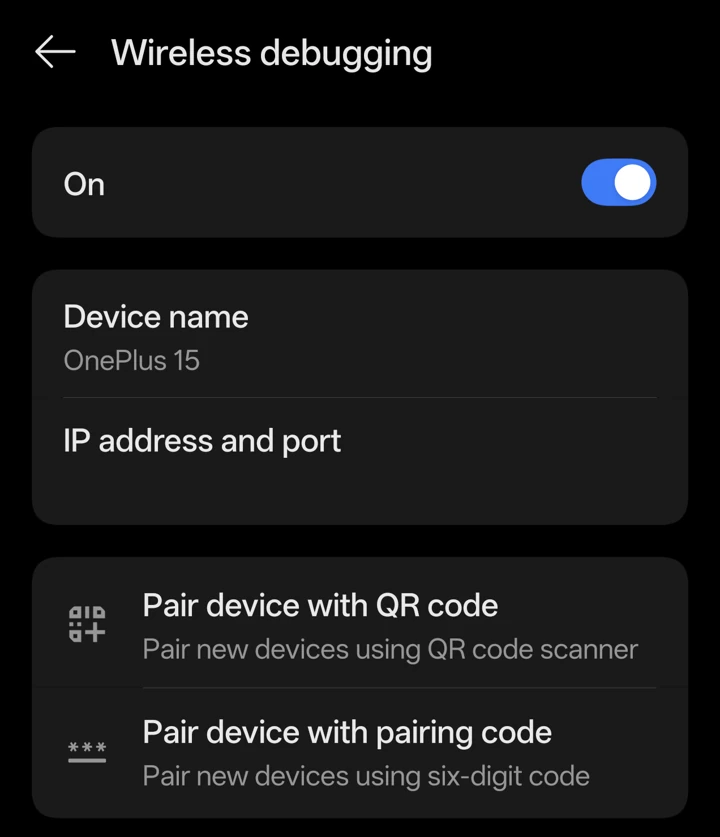
Tap Pair device with pairing code. The network address is hidden in this screenshot.
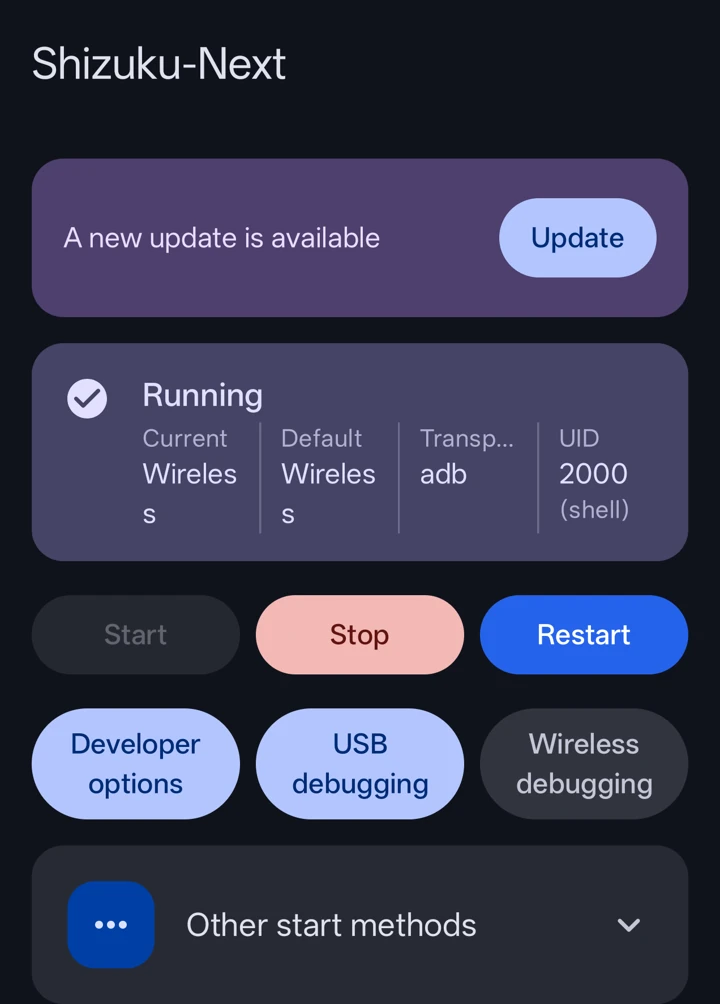
The checkpoint: Shizuku says Running. Installing the Shizuku app alone is not enough.
Need help finding pairing, or using Android 10 or older? Follow the Shizuku setup guide, including its computer method.
3. Give KingInstaller access to Shizuku
- Open KingInstaller.
- Enable its Shizuku switch (called Shizuku trick in some versions).
- When Shizuku asks whether KingInstaller may use it, tap Allow.
- Leave Root off. If file access is requested, grant it so KingInstaller can read your patched APK.
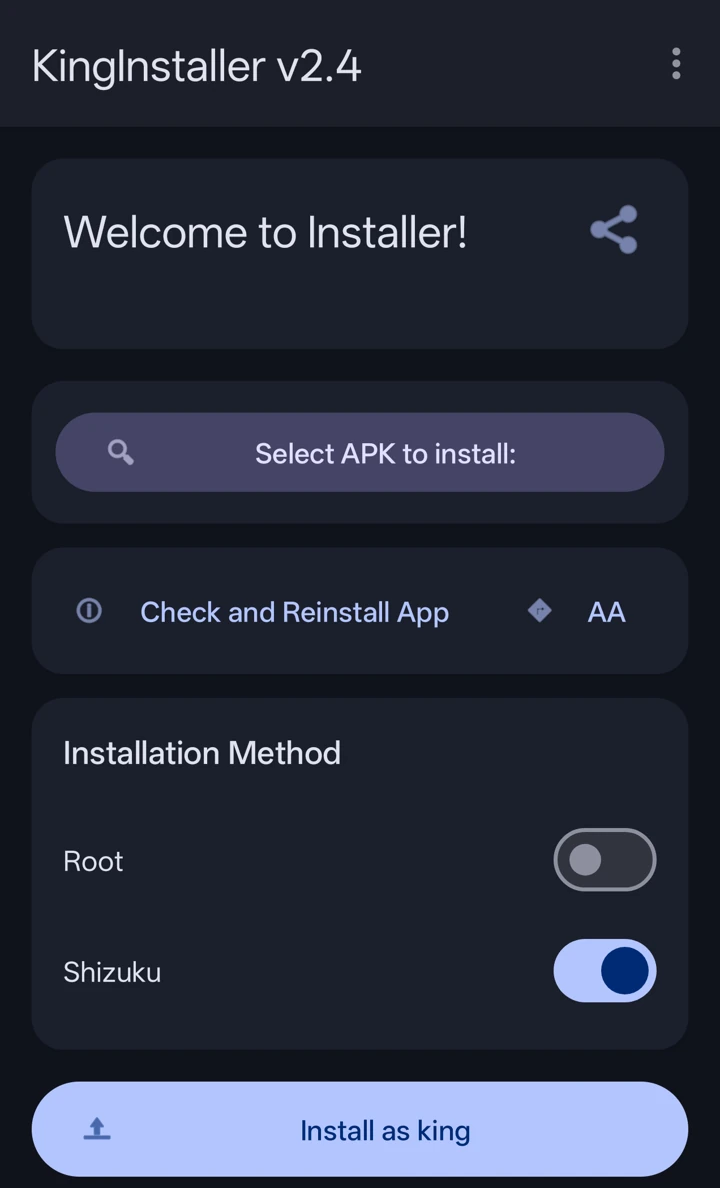
The checkpoint: Shizuku is enabled in KingInstaller before you install the navigation app.
4. Install the patched APK through KingInstaller
- Return to Morphe's finished patching screen and tap Install.
- In the installer chooser, select KingInstaller, then tap Confirm. The separate Shizuku option in Morphe is a different installer; choose KingInstaller for this guide.
- Check that KingInstaller has your patched APK selected and Shizuku is still enabled.
- Tap Install as king, then confirm Install or Update in Android's installation window. Wait for installation to finish.
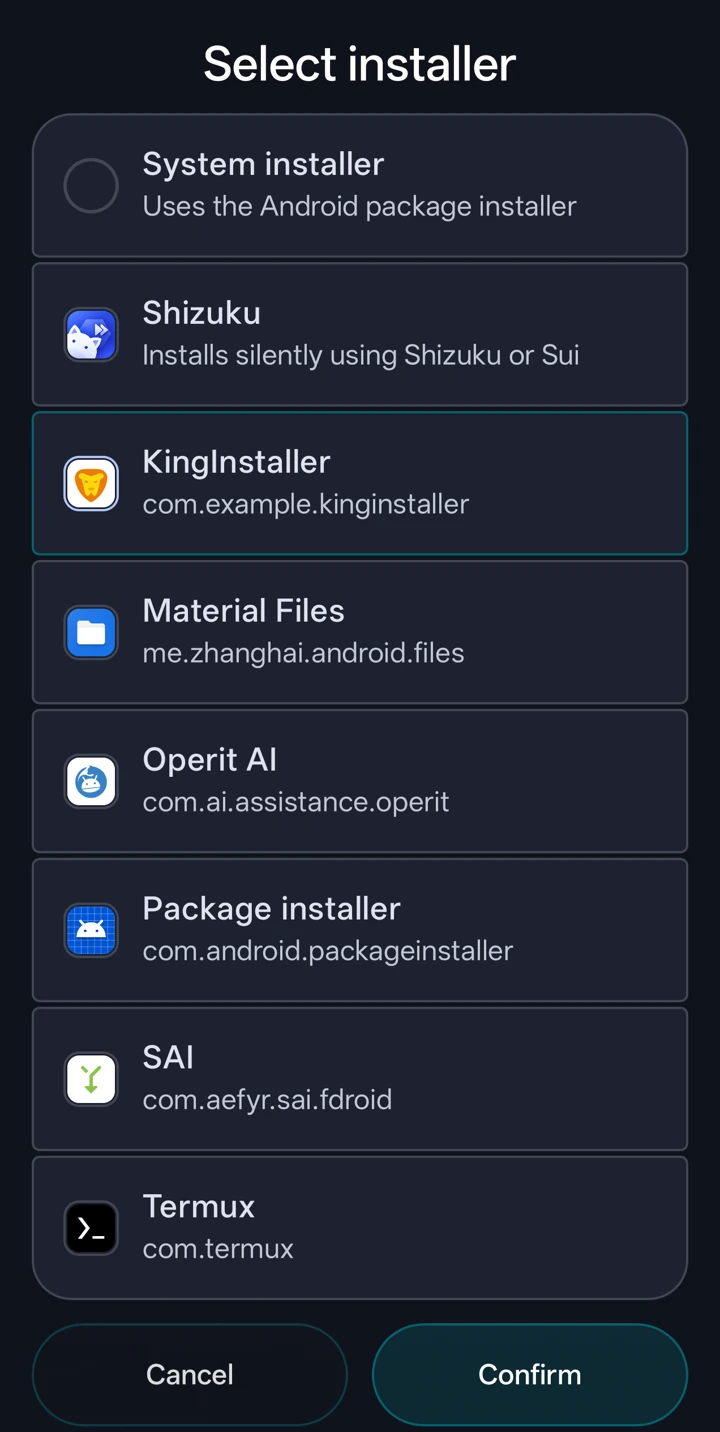
If KingInstaller is not in the chooser, save/export the patched APK from Morphe. Open KingInstaller, tap Select APK to install (or Select file) and choose that saved APK, then continue with Install as king. The APKS/APKM archive you downloaded was the input for patching; it is not the file to select here.
Already installed the patched app another way? Try updating it with the same patched APK through KingInstaller. Keep Morphe's signing key unchanged for future updates.
If Android reports a signature conflict or says the package conflicts with an existing package, you may still have the publisher-signed app or a patched copy made with another key. Save any data you need before removing that copy. Uninstalling can delete its data. See installation and signing.
5. Check Android Auto's app list
- Open Waze or Flitsmeister on your phone once. Complete its first-run setup and give the permissions it needs for navigation.
- Open your phone's Settings and search for Android Auto. Open the Android Auto settings result.
- Tap Customize launcher (or Customise Launcher). Find Flitsmeister or Waze and tick its box. If you applied Waze's Change app name and icon patch, look for your chosen name; its default is De-Waze.
- Reconnect your phone to the car and check the car's app launcher. Complete this setup while parked.
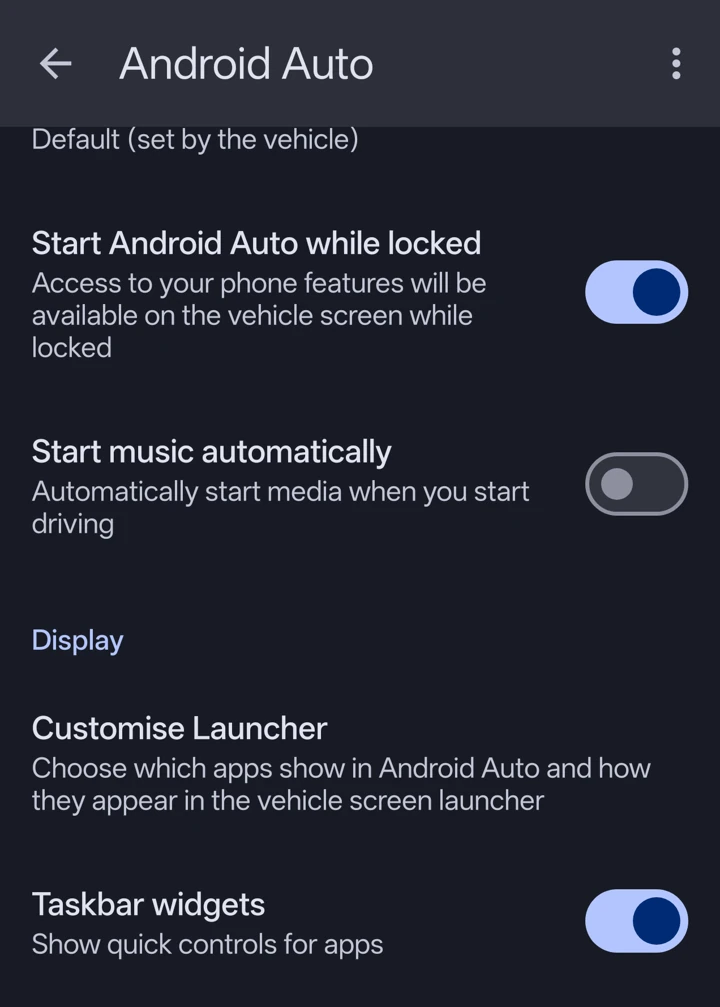
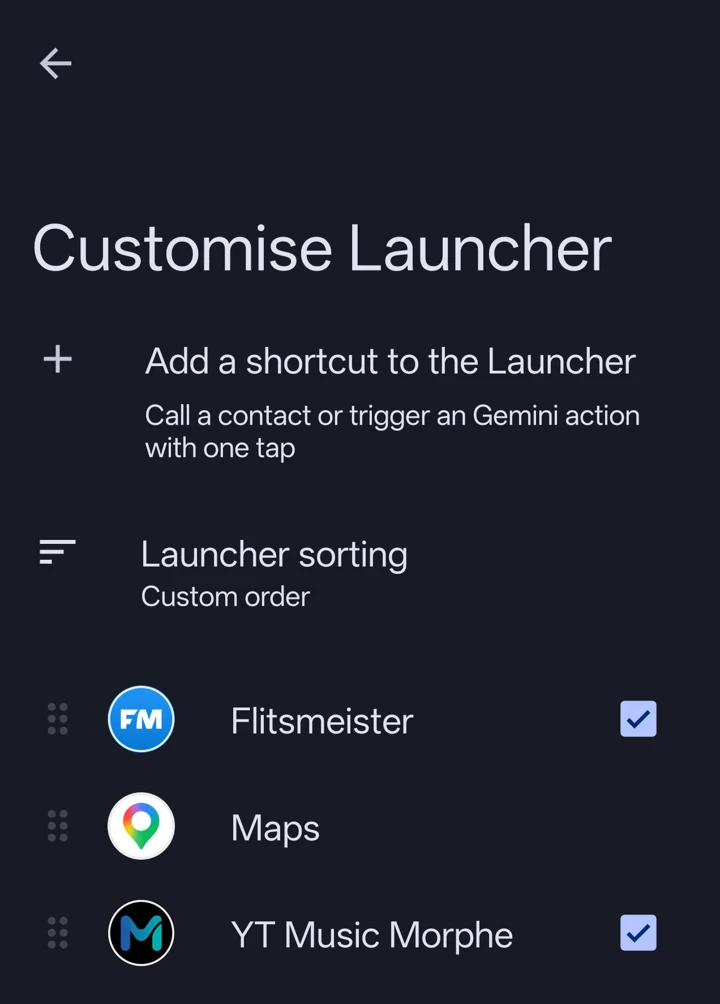
If the app is absent from this list altogether, go back to steps 2 to 4. There is no box to tick until Android Auto accepts the installation.
Updates and phone restarts
For each app update, patch the supported original again and install the new result through KingInstaller with Shizuku enabled. An ordinary installation can change the recorded installation source again.
After restarting the phone, check Shizuku before the next KingInstaller installation. You may need to start it again. Shizuku is used for this installation step; this guide does not require leaving KingInstaller open while driving.
If you get stuck
| What you see | What to do |
|---|---|
| Android Auto settings will not open | In the phone’s Settings, open Apps → Android Auto. If it is disabled, tap Enable, then open Android Auto settings again. |
| Shizuku is installed but does not say Running | Finish pairing and tap Start. Check Wi-Fi and Wireless debugging. See the Shizuku guide. |
| KingInstaller cannot use Shizuku | Start Shizuku first. In Shizuku's Apps screen, check KingInstaller's access, then reopen KingInstaller and enable Shizuku. |
| The app works on the phone but is absent from Customize launcher | Repeat the installation through KingInstaller with Shizuku enabled. Check that you selected the patched APK and completed the Android installation confirmation. |
| The app is listed but hidden in the car | Tick it in Customize launcher and reconnect the phone to the car. Check for a renamed Waze entry too. |
| Installation fails on Xiaomi, POCO or Redmi | KingInstaller's compatibility notes describe manufacturer restrictions on MIUI/HyperOS. The no-root Shizuku route may fail there. Follow its device-specific advice; do not keep uninstalling the navigation app. |
| The app appears but crashes, cannot log in or has no map | That is a separate app problem. Check the app page and report the issue. Appearing in the launcher does not prove every car feature works. |
For a missing-app report, include your phone model, Android and Android Auto versions, app version, KingInstaller version, whether Shizuku said Running and which installer you selected in Morphe. Do not clear Android Auto or navigation-app data just to refresh the list.
Screenshots use an English-language Android 16 phone. Menu names and appearance can differ on your phone. KingInstaller 2.4, Shizuku-Next 14.0.30-next and Morphe Manager 2.3.0 are shown.